
- Home
- Call management app
- Call log backup
Call log backup
Call Log Backup and Restore on a New Phone Is Calsyst
A call log backup is a saved copy of a phone's calls kept elsewhere, so a lost handset does not erase who called whom. Calsyst keeps that copy in your account with each call's notes and follow-ups, and a sign-in on the next phone brings it back.
- Calls, leads, remarks and follow-ups in one backup
- Pick the SIMs and the calls that are saved
- A sync log that shows every run
What is a call log backup?
A call log backup is a copy of the phone's call list in an online account or file, so another handset can receive it later.
For a business, Calsyst makes that copy more useful, because each call keeps its lead, its status and its remark, not only a number and a time.
- Android's own backup restores calls only at phone setup.
- An account backup can be checked any day.
- Only calls still on the phone can be saved.
Call log backup benefits
What a business keeps that a plain backup app loses.
Calls with their story
Each saved call keeps the lead, the status and the remark that went with it.
Follow-ups survive the switch
Reminders come back on the new phone and ring at their set times.
Private calls left out
Excluded numbers and an optional working-hours limit keep personal calls off the account.
Proof that it ran
Every upload leaves a line in the sync log, and a built-in check fills gaps between phone and account either way.
Call log backup and restore: step by step
Five steps, done once. After that the backup runs on its own.
- 1
Install Calsyst and sign in
Install the app on the phone you use for work and sign in to your account. The first sync starts in the background.
- 2
Choose the SIMs to back up
On a dual-SIM phone, tick the card used for business. Calls on the other card stay off the account.
- 3
Set optional backup limits
By default every call is saved. Optionally limit the backup to office-time calls, to calls with known customers, or both.
- 4
Check the sync log
Open the sync log to see what ran and when. Tap retry, or sync everything again, if a run failed.
- 5
Restore on the new phone
On the replacement phone, install Calsyst and sign in with the same account. Calls, leads and reminders return.
Backup call history with Android’s own backup
Most Android phones can copy the call history to Google. The menu names differ by brand, so treat these as a guide:
- Open Settings and find Google or System, then Backup.
- Check that backup to Google Drive or Google One is on.
- Check that call history is part of the backup.
- Tap Back up now.
This copy has two limits. It comes back only when you set up a new phone or reset the old one, and you cannot open it to read a single call. For a business, it also loses the context: a number and a time, but no lead, status or note.
Call log backup Android for business: phone backup vs account backup
| Point | Android phone backup | Calsyst account backup |
|---|---|---|
| What is saved | Numbers, times and call types | Calls plus lead, status, remark and follow-up |
| When it restores | At new phone setup or reset | When you sign in on any phone |
| Can you check it | Not call by call | Yes, and the sync log shows each run |
| Choose the SIM | No | Yes |
| Leave out private calls | No | Optional working-hours and customers-only limits, excluded numbers |
| Team view | No | An owner account shows calls from all staff phones |
Both can run at once. Many teams keep the phone backup on and use Calsyst for the business record.
Call log backup and restore: before you switch phones
Plan a phone change a day ahead. Open the sync log on the old phone and check that the last run finished. If a run failed, tap retry. Then sign in on the new phone and wait for the full sync before you factory-reset the old one.
If a call is already gone from the old phone, a backup cannot bring it back. The page on how to recover deleted call logs explains what is and is not possible. For daily work with the restored history, see the call history manager.
Call log backup limits
- A backup holds only the calls that were still on the phone when it synced.
- Calls from SIMs you did not tick, and excluded numbers, are not saved.
- In attendance app mode, call logs stay out of the backup until you switch it off.
- iPhone apps cannot read the call log, so there is no iPhone call log backup.
- Calsyst does not open an old Google Drive backup file.
Call log backup example: an insurance broker in Lusaka
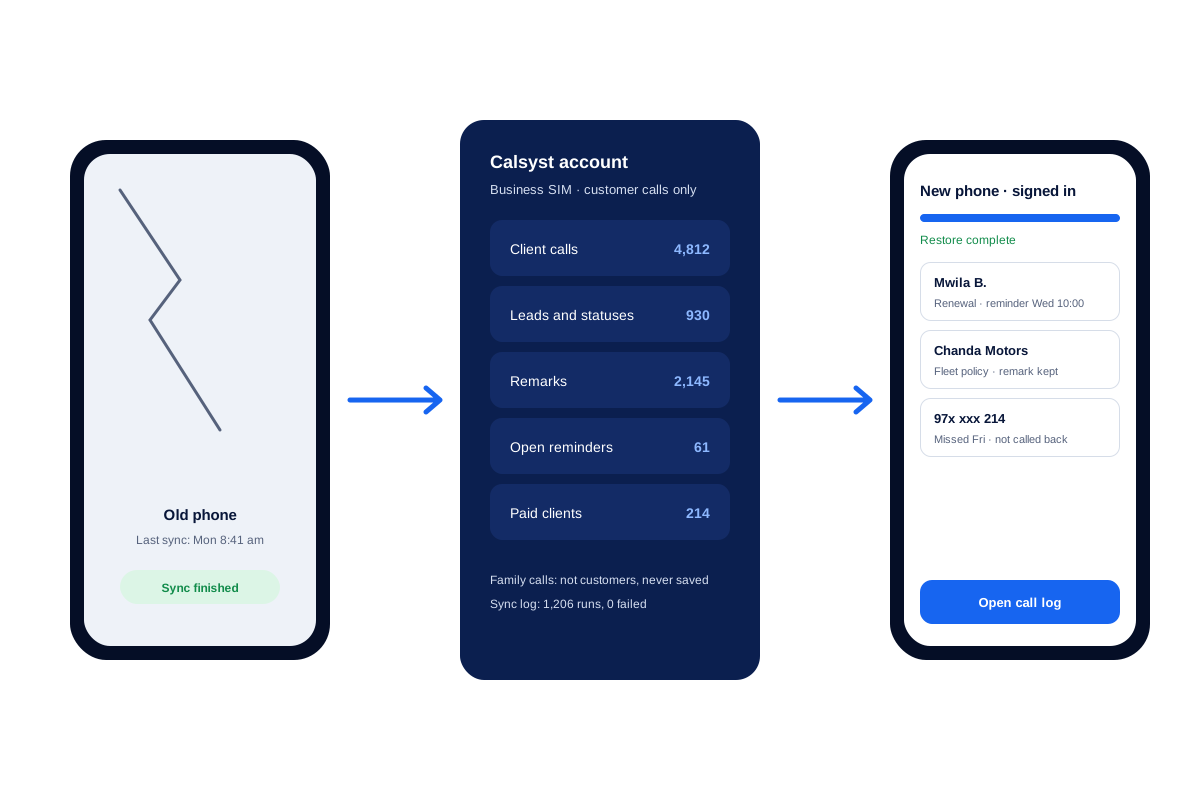
An insurance broker in Lusaka drops her phone in a car park on a Monday. On it are 3 years of client calls and about 60 renewal reminders.
Months earlier she told Calsyst to save customer calls alone, and only those on her business SIM. On Tuesday she buys a new phone, installs Calsyst and signs in. Within the hour her client calls, remarks and renewal reminders are back, and Wednesday’s reminders ring on time.
Her family calls were never part of the backup, so they did not come back, which was her choice.
Call log backup FAQ
How do I get a backup of my call logs?
Turn a backup on. On Android, switch on Google backup with call history selected, or use an app that stores the log in an account. Calsyst saves business calls to your Calsyst account.
Which call log backup keeps each business call with its notes?
Calsyst does. A restored call arrives with its customer, the status that customer had, the note typed afterwards and any reminder booked, so the story moves with it.
Does Calsyst back up more than the call list?
Yes. Calsyst is a call log backup and call manager, and its copy also carries your leads with their statuses and notes, booked reminders, paying clients, message templates and WhatsApp CRM chats.
Can I get my call history back from two years ago?
Only if a backup from that time exists. A backup can hold only the calls that were still on the phone when it synced.
Can I see my whole call history on the account?
Only the calls that synced under your backup rules. Calls you excluded, or calls from a SIM you did not tick, are not there.
Can I choose which SIM card's calls are saved?
Yes. Tick the business card in the settings; calls on an untouched family card never travel to the account.
My phone mixes work and family calls. Does the backup take both?
Only if you let it. Limit saving to office time or to known customers, or list family numbers as excluded so they are never copied.
How do I know that the backup really ran?
Look at the sync log in Settings. A finished run has a time beside it; a failed one can be repeated, or you can push the full data set again.
Do I need the old phone to restore?
No. Sign in on the new phone with the same account, and the saved data comes back from the account.
Does the backup run while I work?
Yes. It syncs in the background, and it runs a full sync each time you open the app.
What happens to a call I delete on the phone?
It depends on the admin's permissions. Deletes reach the server according to them, so in a team the owner decides whether they leave the account too.