
- Home
- Auto dialer app
- Auto dialer from Excel
Auto dialer from Excel
Auto Dialer From Excel or Google Sheets on Android Is Calsyst
An auto dialer from Excel reads the number column of your spreadsheet and works down it call by call, so no digit is retyped. Calsyst makes every sheet you upload a separate calling list on the Android handset.
- Spreadsheets, CSV, JSON or Google Sheets
- Repeats removed while uploading
- One list per file, removable later
What is an auto dialer from Excel?
An auto dialer from Excel reads the number column and rings each row in turn: upload the file, map the columns, then start a session.
Calsyst is an auto dialer from Excel and Google Sheets that rings each row from your SIM and asks for the outcome after every call.
- One row per lead, one column for the number.
- Extra columns map to custom fields and stay on each lead.
- Delete the list later and only its leads go.
Auto call from Excel: benefits over dialing by hand
What a caller saves when the sheet dials itself.
No copying numbers
Digits move from the cell to the call without a single tap on the keypad.
Clean list from the start
Two rows holding one mobile collapse into one lead, and missing country prefixes get added.
Extra columns kept
City, product or budget columns map to custom fields and stay on each lead.
Skipped rows explained
Rows left behind come with a stated cause, such as a blank number cell, ready to correct.
Sheets that refill
Connect a Google Sheet once; fresh rows added by a form later turn into leads by themselves.
Auto dialer from Excel: the steps
A short setup the first time, quicker after that.
- 1
Tidy the sheet
Keep one lead per row and one column for the mobile number. Add name and any other columns you need.
- 2
Get the file onto the phone
Share the Excel, CSV or JSON file from WhatsApp, email or the browser straight into the Calsyst import screen.
- 3
Map the columns
Say which column holds the name, which the mobile and where extras go, then choose a country for numbers lacking a prefix.
- 4
Check the result
Read how many rows imported, which duplicates were dropped and why any row was skipped.
- 5
Start the session
Open the new list and tap start. The dialer rings each lead from your SIM, with the gap and retries you set.
Auto dial Excel lists: getting the sheet right
Most import problems start in the spreadsheet, not the app. A few minutes here saves a messy list later.
| Column | Needed? | Tip |
|---|---|---|
| Mobile number | Yes | One number per cell; leave out spaces and words |
| Name | Recommended | Shows on the caller card while it rings |
| Country code | Only for mixed countries | Or set one country for the whole upload |
| City, product, budget | Optional | Map them to custom fields to filter later |
| Notes from the event | Optional | Map to a custom field rather than the remark |
Auto dialer from a Google Sheet: lists that stay current
A one-off file suits a single campaign. When leads keep arriving, for example from a website form that writes to a sheet, link the Google Sheet as a source instead. Calsyst checks it on a schedule and new rows turn into leads, ready for the next session. The lead automation page shows the same idea for forms and APIs.
Once the leads are in, the auto dialer app page explains the session settings, and the auto redial app page covers retries for no-answers.
Auto call from Excel: limits
- The dialing happens on an Android phone, not inside Excel on a computer.
- One call rings at a time from your SIM; no parallel or predictive mode.
- Assign the leads across callers so each queue stays workable.
- Check that people on the list agreed to be called; the app cannot know that. This is general information, not legal advice.
Auto dialer from Excel example: leads from a trade fair
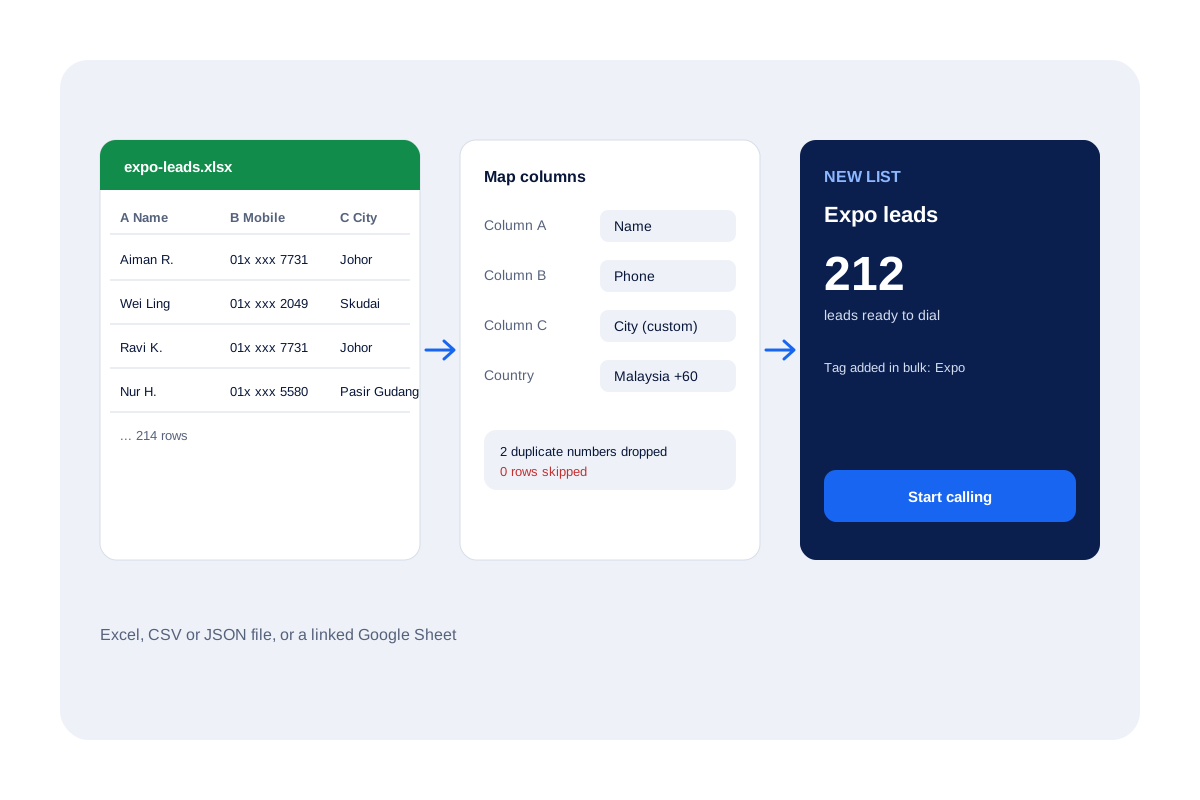
A kitchen appliance dealer in Johor Bahru collects 214 visitor rows at a home fair in a sheet called expo-leads.xlsx.
The sales lead shares the file from WhatsApp into Calsyst, maps Name, Mobile and City, and sets Malaysia for numbers without a code. The import drops 2 duplicates and skips nothing, leaving 212 leads, which she tags Expo in one bulk edit.
She assigns 106 leads each to two callers, who start their sessions the next morning.
Auto dialer from Excel FAQ
Which auto dialer from Excel works on Android phones?
Calsyst can. Upload the spreadsheet, map the phone column, and the dialer rings every row from your own SIM, saving each outcome as it goes.
What is Calsyst?
Calsyst is an auto dialer and calling CRM for Android that turns Excel files and Google Sheets into calling lists and logs every call against a lead.
How to set auto dialer for a spreadsheet list?
Five steps: tidy the sheet, share the file into Calsyst, map the columns, check the result, then press start. Choose the pause between calls and the retry count first.
Does the dialer need the file in a special format?
No. Excel, CSV and JSON all work. The only must-have is a column with phone numbers; everything else is optional.
Can it dial from a Google Sheet instead of a file?
Yes. Add the Google Sheet as a source; Calsyst revisits it on a timetable, and rows that appear later turn into leads you can dial.
What happens to numbers that appear twice in the sheet?
They are dropped during the upload, so the same person is not rung twice in one session.
What if some rows do not import?
The import screen lists each skipped row with its reason, such as a missing number. Fix the sheet and upload again.
Can I remove an uploaded list after the campaign?
Yes. Delete the list and Calsyst removes only the leads that list added, leaving leads from other sources in place.
Can several callers share one Excel list?
Yes. Upload it once, then assign the leads across the team. Each caller works their own pending queue.
Is auto dialing from a spreadsheet legal?
Usually yes, provided a real person talks on every call and the people on the sheet agreed to hear from you. Local do-not-call registers still apply. This is general information, not legal advice.